Canva vs Photoshop vs Illustrator: Which Tool Should You Learn?
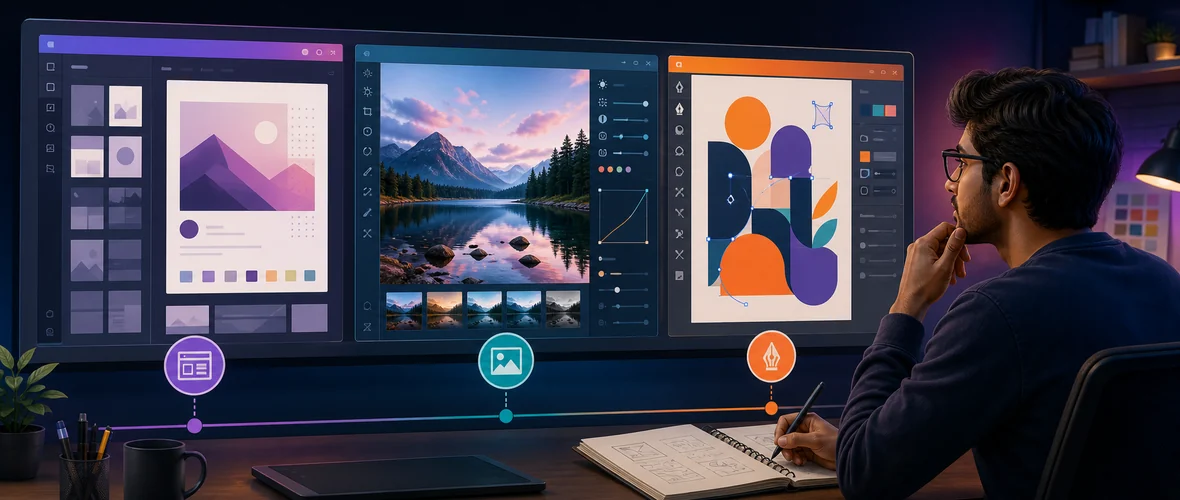
Compare Canva, Photoshop and Illustrator by purpose, project type and learning curve, then choose a practical beginner learning path.
01 The difference in one minute
If your goal is website design, use this website-design learning roadmap to see how these tools fit with layout and WordPress. Before turning practice work into a portfolio site, use the WordPress website planning checklist to define its pages and goals.
- Canva is a template-led design platform for creating common marketing and communication materials quickly.
- Photoshop is primarily a pixel-based image editor used for photo correction, compositing, digital artwork and detailed raster graphics.
- Illustrator is a vector design application used for logos, icons, scalable illustrations, typography and precise artwork.
Many designers use more than one. A social graphic may begin with an edited photo, include a vector icon and finish in a template-based layout.
02 Canva vs Photoshop vs Illustrator comparison
| Factor | Canva | Photoshop | Illustrator |
|---|---|---|---|
| Core approach | Template-led layout | Pixel-based image editing | Vector-based drawing and design |
| Best for | Fast social posts, presentations and simple marketing assets | Photo retouching, compositing and detailed raster artwork | Logos, icons, illustrations and scalable graphics |
| Beginner learning curve | Generally gentle | Moderate to steep | Moderate to steep |
| Resize without quality loss | Depends on the source elements and export | Limited for raster artwork | Strong for vector artwork |
| Detailed photo control | Basic to moderate | Strong | Not its primary purpose |
| Precise vector control | Limited compared with a dedicated vector editor | Some vector features | Strong |
| Collaboration | Designed for quick browser-based collaboration | Available through supported cloud workflows | Available through supported cloud workflows |
03 When should a beginner use Canva?
Canva is useful when the priority is producing a clear, attractive asset quickly. Templates reduce the time required to set up dimensions and basic layout. It is a practical choice for:
- Social media posts and story graphics
- Presentations and simple reports
- Flyers, invitations and certificates
- Basic brand kits and reusable team templates
- Simple videos and animated posts
- Quick mock-ups for content ideas
The risk is relying on templates without understanding design principles. Changing colours and text does not automatically create a strong design. Learn hierarchy, spacing, alignment, contrast, typography and image selection so your work does not look generic.
Choose Canva first if:
- You create regular content for a small business or student project.
- You need simple collaboration and repeatable templates.
- Your work is mainly layout and communication rather than complex editing.
- You want to build confidence before learning deeper production tools.
04 When should a beginner use Photoshop?
Photoshop is built around pixels. A photograph and most web images are raster files made of a fixed grid of pixels. Photoshop provides detailed control over selections, masks, colour, lighting, layers and compositing.
Common projects include:
- Photo correction and retouching
- Removing or replacing backgrounds
- Combining multiple images realistically
- Creating web banners and advertising artwork
- Digital painting and texture work
- Preparing images for web or print
Photoshop takes longer to learn because the same result can often be achieved in several ways. Beginners should understand layers, non-destructive adjustments, masks, selections, smart objects, resolution and export formats before chasing advanced effects.
Choose Photoshop first if:
- You want to edit photographs professionally.
- You need realistic composites or detailed image control.
- Your portfolio will focus on photo-based advertising or digital art.
- You want to understand raster production for web and print.
05 When should a beginner use Illustrator?
Illustrator creates vector artwork using mathematical paths, shapes, fills and strokes. Vector graphics can be resized from a small icon to a large sign without becoming pixelated, provided the design remains vector-based.
It is well suited to:
- Logo and visual-identity systems
- Icons and interface graphics
- Infographics and diagrams
- Typography and lettering
- Packaging artwork
- Scalable illustrations and patterns
The Pen tool and path construction can feel unfamiliar at first. Begin with basic shapes, alignment, the Pathfinder or shape-building workflow, anchor points, colour and type. Precision matters more than complicated effects.
Choose Illustrator first if:
- You want to design logos, icons or brand systems.
- You enjoy drawing clean shapes and scalable illustrations.
- Your work must be produced at many sizes.
- You want strong control over paths, typography and print-ready vector files.
06 Which tool should you learn first?
Use your target project to decide:
- Social media manager or small-business owner: start with Canva and design fundamentals; add Photoshop when photo control becomes a limitation.
- Photo editor or advertising designer: start with Photoshop; add Illustrator for logos, icons and vector elements.
- Logo or brand-identity designer: start with Illustrator; learn Photoshop for image-based mock-ups and campaign assets.
- General graphic-design student: learn principles first, then Illustrator and Photoshop; use Canva for speed and collaboration where appropriate.
Do not wait to “finish” one application before making projects. Learn the few features required for a small project, complete it, review the result and then increase the difficulty.
07 A practical 6-week beginner path
| Week | Focus | Project |
|---|---|---|
| 1 | Hierarchy, contrast, alignment and spacing | Redesign a simple event notice |
| 2 | Typography and colour | Create a three-post campaign in Canva |
| 3 | Photoshop layers, selections and masks | Prepare a clean promotional image |
| 4 | Photoshop adjustments and export | Create a web banner from original assets |
| 5 | Illustrator shapes, paths and typography | Design an icon set |
| 6 | Combined workflow and presentation | Create a small visual-identity case study |
08 File types beginners should understand
- JPG: compact format for photographs; does not support transparency.
- PNG: useful for transparent raster graphics and screenshots; files can be larger.
- WebP: efficient web format for photographs and graphics in modern browsers.
- SVG: scalable vector format commonly used for logos and icons on the web.
- PDF: useful for sharing and printing, but editability depends on how it was created.
- Native working files: preserve layers, paths and editability for future changes.
Always keep an editable master file and export a separate delivery file. Confirm colour mode, dimensions, resolution and bleed requirements with the printer or platform before final export.
09 Common mistakes when choosing design software
Learning buttons without design principles
Software knowledge cannot replace visual hierarchy, composition, typography and clear communication. Study the reason behind a design decision, not only the steps used to produce it.
Using raster artwork for a logo
A logo usually needs a clean vector master so it can scale reliably. Photoshop may help prepare a presentation mock-up, but Illustrator or another vector editor is generally more appropriate for the core logo artwork.
Copying templates into a portfolio
Templates can teach structure, but a portfolio should demonstrate your own decisions. Change the concept, content, imagery and system substantially, and follow the asset licence.
Ignoring usage rights
Check the licence for templates, fonts, stock images, icons and generated assets—especially for client, commercial and logo work. Keep records of where assets came from.
10 How to build a stronger learning portfolio
Create projects that show different problems: a social campaign, photo composite, icon set and small brand system. For each project, explain the brief, audience, constraints, iterations and final deliverables.
For more guidance, read Graphic Design for Beginners: Skills, Tools and Portfolio. Learners who want guided practice with Canva, Photoshop, Illustrator and creative branding can review the Graphic Design Course at ACME IT Centre.
11 Frequently asked questions
Can Canva replace Photoshop?
Canva can handle many everyday layouts and basic image adjustments, but it is not a complete replacement when you need detailed retouching, complex selections, non-destructive compositing or precise pixel control.
Can Photoshop replace Illustrator?
Photoshop includes shape and path features, but Illustrator is purpose-built for scalable vector artwork, logo systems, icons and precise path editing. Use the tool that matches the final production requirement.
Do I need to learn all three?
No. Start with the tool that fits your immediate project. Learn a second tool when your current workflow creates a real limitation. Generalist designers often use all three, but specialisation is also valid.
12 Final takeaway
In the Canva vs Photoshop vs Illustrator decision, start with the output: quick template-based communication, detailed pixel editing or scalable vector design. Learn fundamental design principles alongside the software, complete small original projects and add tools only when they expand what you can create.
Takeaway & Career Action Paths
Compare Canva, Photoshop and Illustrator by purpose, project type and learning curve, then choose a practical beginner learning path.